Available Menus by Package
| Package | Available Menus |
|---|---|
| Basic | Dashboard, Chart, Data, Admin |
| Silver | Dashboard, Chart, Schedule, Data, Admin |
| Gold | Dashboard, Chart, Schedule, GHG, Performance, Data, Admin |
Gold customers have access to all operational and reporting features, including emission and fuel consumption analysis.
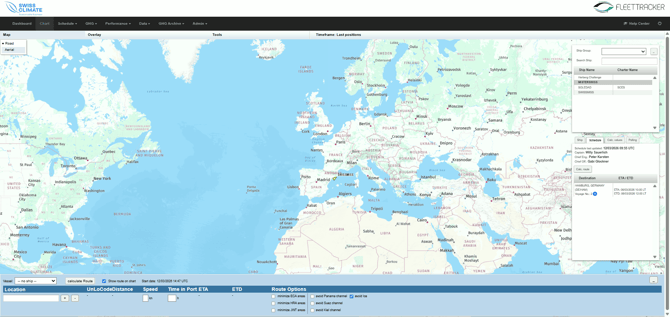
When logging in to Fleettracker, this is the default landing page:
Fleettracker Menu Explained
Dashboard
The Dashboard provides a quick overview of your fleet and recent operational activity.
It allows users to quickly review important information and recent updates across the fleet.
Chart
The Chart is the central map view of Fleettracker and shows the current position and upcoming itinerary of all vessels in your fleet.
Schedule (Silver and Gold packages)
The Schedule module allows users to view vessel schedules and voyage information.
GHG (Gold package)
The GHG module contains tools for emission reporting and regulatory compliance.
Performance (Gold package)
The Performance section allows users to monitor and analyze vessel performance.
Data
The Data module provides access to vessel data reported to Fleettracker.
Admin
The Admin section contains system configuration and management tools.