📥 1. Install Vessel.Report as an App
To use Vessel.Report offline, you must first install it as an application (app) on your computer.
We recommend installing the app when logging in for the first time, while a stable internet connection is available.
✅ Option 1 – Install directly from Vessel.Report (Recommended)
- Open Vessel.Report in your browser and log in.
- Click the Install App button within Vessel.Report.
- Follow the installation instructions displayed by your browser.
- Confirm the installation.
Once installed, Vessel.Report can be launched directly from your desktop or Start menu, just like a regular application.
📷 Screenshot 1 – Install Vessel.Report directly from within the application (to be added).
🌐 Option 2 – Install via the Browser
Alternatively, you can install Vessel.Report using the browser's installation function.
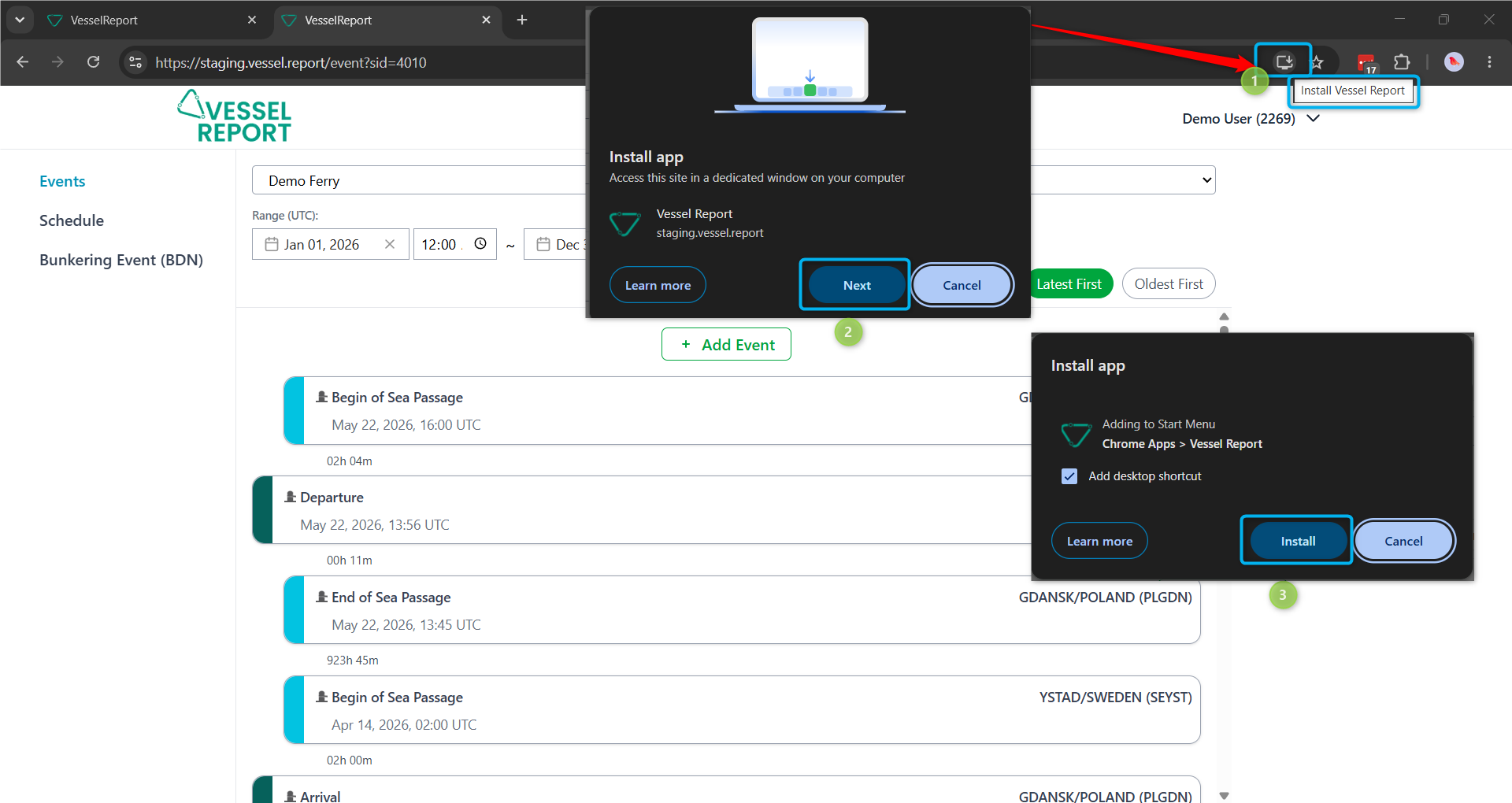
- Open Vessel.Report in your web browser (here we used Google Chrome)
and log in. - Click the Install Vessel Report icon on the right-hand side of the browser's address bar.
- In the installation window, click Next.
- Click Install to complete the installation.
- You can also select Add desktop shortcut for easier access.
💻 Opening the Installed App
After installation, you can open Vessel.Report in two ways:
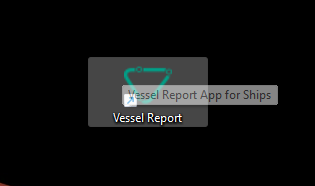
- Desktop shortcut: Double-click the Vessel.Report icon on your desktop.
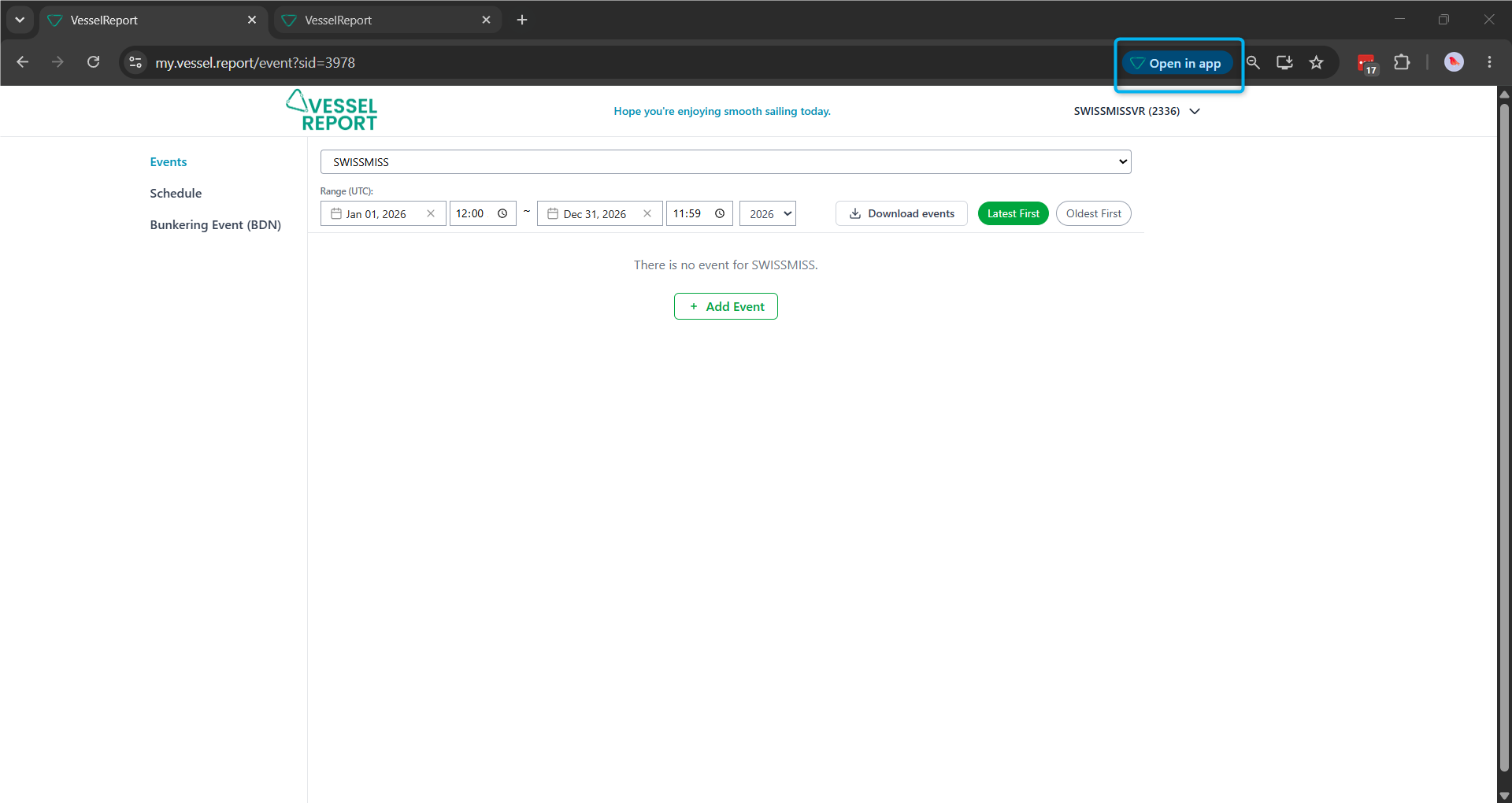
- Browser: Open Vessel.Report in Chrome and click Open in app in the address bar.
💡 Tip: Always use the installed Vessel.Report app when working onboard, particularly when internet connectivity may be interrupted.
📡 2. Working Offline
When the ship loses its internet connection, Vessel.Report automatically detects that it is offline.
A yellow notification banner appears at the top of the application:
"You are currently offline. Changes will be saved locally and synced when connection is restored."

You can continue entering and updating reporting data without an active internet connection. Changes are stored locally on the computer.
💡 Please Note – Slower Performance in Offline Mode
When working offline, Vessel.Report may take longer to load or process certain actions. Please be patient and allow the application sufficient time to respond.
Avoid repeatedly clicking buttons or restarting the app if an action takes longer than usual. Your changes will be stored locally and synchronized once the internet connection is restored.
⏳ 3. Pending Synchronization
When data is added or changed while offline, Vessel.Report marks the affected entries with a Pending sync indicator.
This means the changes have been saved locally but have not yet been transferred to the server.
You may also see the following message:
"Will sync when online — not editable until then"
Entries awaiting synchronization cannot be edited again until the synchronization has been completed.

🔄 4. Automatic Synchronization
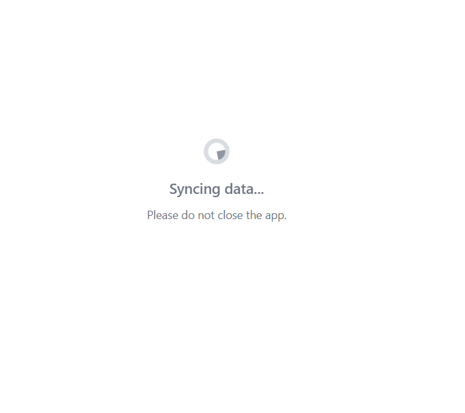
As soon as the internet connection is restored, Vessel.Report automatically starts synchronizing the locally stored data with the server.
During this process, the following message appears:
"Syncing data... Please do not close the app."
Wait until the synchronization is completed before closing the application.
Once successfully synchronized, the pending changes are available on the server.
⚠️ Important Notes
- ✅ Install the app first: Complete the installation while online, preferably during your first login.
- 💻 Use the installed app: Open Vessel.Report through the desktop shortcut or Start menu when working onboard.
- 💾 Offline changes are stored locally: Data awaiting synchronization has not yet been uploaded to the server.
- 🛑 Do not remove locally stored application data: Avoid clearing the app's storage, browser site data, or uninstalling the app while changes are pending.
- 🔄 Wait for synchronization: Do not close the application while the "Syncing data" message is displayed.
- 🔍 Check pending entries: After reconnecting, verify that the "Pending sync" indicators have disappeared.