1. Accessing map settings
- Open the Chart
- Locate the map control or layer icon (upper left corner of the map)
2. Switching between map views
You can choose between two main map types:
Road (Standard) view
- Simplified map with borders and labels
- Ideal for general navigation and overview
Aerial (Satellite) view
- Real-world satellite imagery
- Useful for detailed views near ports and coastal areas
👉 You can switch between these views at any time.
3. Using map overlays
Overlays add additional information layers on top of the map.
Overlays include:
- Sea chart
- Forecast for wind, pressure & wave hights
- Map lables
- Places/Areas (cusomized)
- ECA and JWC zones (standard)
- 💡Tipp: For Places/Areas and ECA/JWC zones you can set up an Email notfication. See aslo Create Email messaging
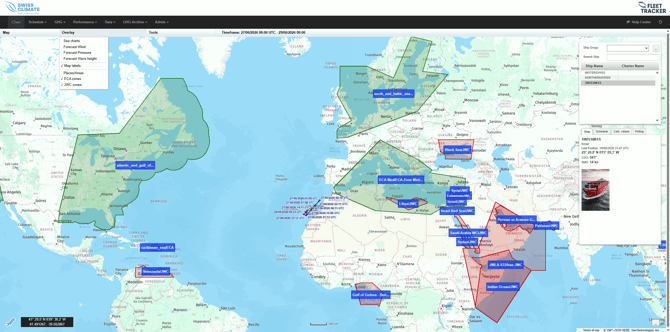
How to enable overlays
- Open the map/layer settings
- Select or toggle the desired overlay(s)
4. When to use overlays
Overlays are useful when you need more operational context, for example:
- Monitoring weather conditions
- Uchecking environmental and insurance relevant factors affecting routes
- Enhancing situational awareness during voyages
5. Important notes
- Overlays can be turned on/off at any time
- Multiple overlays may be available depending on your package
- Enabling many overlays at once may affect map clarity