⚠️ Important Difference Between Standard Fuels and Bio Blends
Unlike standard fuels such as VLSFO or MGO, a Bio Blend contains:
- At least two fuel components
- Individual component quantities
- Separate sustainability and emissions values
Because of this, additional blend component information must be entered manually.
🚢 Step 1 — Create the Bunkering Event
- Select Bunkering Event (BDN)
- Click ➕ Add Bunkering
- Select Bio Blend as the fuel type
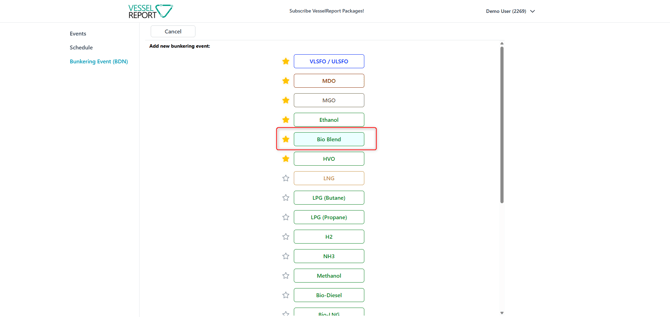
Complete the standard BDN information:
- Delivery dates
- BDN number
- Supplier details
- Port and location
- Upload BDN attachment
After saving, the Fuel Components & GHG Factors section opens.
⚙️ Step 2 — Enter General Fuel Information
Enter the overall blend information:
- ⚖️ total Quantity
- 🌡️ Viscosity
- Density
- Sulphur Contents
- Flash Point
➕ Step 3 — Add Blend Components
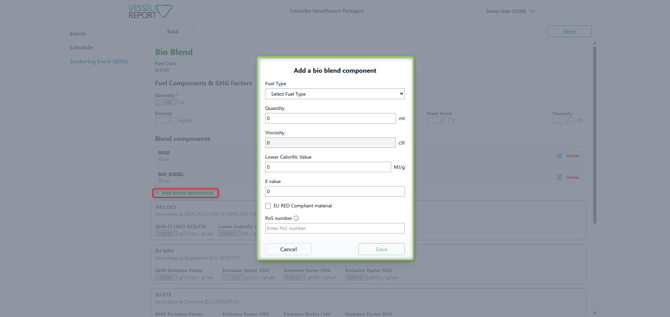
Under Blend components:
- Click ➕ Add blend component
A popup window opens for entering the individual blend component details.
🧪 Step 4 — Enter Blend Component Information
For each blend component, complete the following fields:
Required Fields
⛽ Fuel Type
Select the fuel component type.
⚖️ Quantity
Enter the component quantity in:
- metric tons (mt)
🌡️ Viscosity
Enter the viscosity value:
- cSt
🔥 Lower Calorific Value
Enter the LCV value:
- MJ/g
🌱 E-Value if already available for the Biofuel component
Enter the E-Value from the:
- POS (Proof of Sustainability) document
This value is required for biofuel sustainability and emissions calculations.
✅ EU RED Compliant Material
If the Bio component complies with EU Renewable Energy Directive requirements:
- Tick EU RED Compliant material
This indicates the component fulfills sustainability compliance requirements.
💾 Step 5 — Save the Blend Component
After completing all fields:
- Click Save
Repeat the process for all blend components included in the Bio fuel blend.
📌 A Bio blend must contain at least two components.
🌍 Automatic Compliance Calculations
Once all components are entered, we automatically calculate values for:
- IMO DCS
- EU + UK MRV
- EU ETS
- FuelEU Maritime
The calculations are based on:
- Blend composition
- Sustainability data
- E-Values
- Fuel quantities
💡 Best Practices
- ✔️ Always verify component quantities equal the total bunkered quantity
- ✔️ Use the E-Value exactly as stated in the POS document
- ✔️ Upload sustainability documentation when available
- ✔️ Ensure all blend components are entered separately
- ✔️ Verify EU RED compliance status before saving
📌 Summary
To enter a Bio Blend BDN:
- Create a new Bunkering Event
- Select Bio Blend
- Enter standard BDN information
- Enter general fuel properties
- Click ➕ Add blend component
- Add at least two fuel components
- Enter the component E-Value from the POS document
- Save all blend components
- Review automatic GHG calculations
The Bio Blend is then available for operational tracking and compliance reporting in you events rob and consumptions.