🚢 Step 1 — Open the Bunkering Event Section
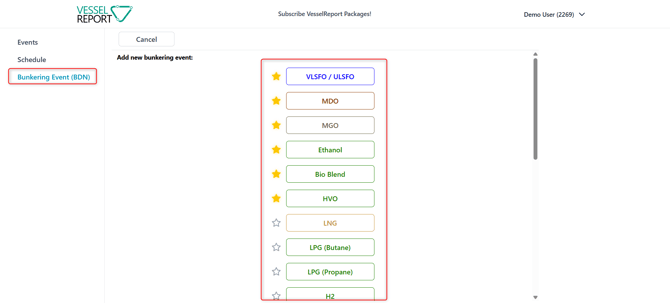
- Select Bunkering Event (BDN) from the left-side menu
- Choose the relevant ship from the dropdown list
- Existing bunkering events are displayed in the overview
To create a new bunkering event:
- Click ➕ Add Bunkering
The system opens the fuel selection screen.
💡Tipp: You can Hide / Show already used up bunker charges by clicking on the button
Hide used-up bunker charges
⛽ Step 2 — Select the Fuel Type
Select the fuel type used during bunkering.
Available fuel types include:
- VLSFO / ULSFO
- MDO
- MGO
- LNG
- LPG (Butane)
- LPG (Propane)
- H2
- NH3
- Methanol
- Ethanol
- Bio Blend (click here to learn how to create a Bio Blend)
- Bio-Diesel
- HVO
- Bio-LNG
- Bio-Methanol
- Other Biofuel
- Bio-H2
- e-Diesel
- e-Methanol
- e-LNG
- e-H2
- e-NH3
- e-LPG
👉 Choose the fuel that matches the Bunker Delivery Note.
After selecting the fuel type, the bunkering entry form opens automatically.
💡Tipp: ⭐Mark you favourite fuel types. Favourites will be moved to the top of the list.
📝 Step 3 — Enter Fuel Components & GHG Factors
In the Fuel Components & GHG Factors section, enter the fuel properties from the BDN.
Mandatory Fields
⚖️ Quantity
Enter the bunkered fuel quantity in:
- metric tons (mt)
🌡️ Viscosity (only mandatory for VLFO/ULSFO)
Enter viscosity in:
- cSt
Optional Fields
Enter density in:
-
kg/m3
Enter sulphur content in:
- %
Enter flash point in:
- °C
Complete the BDN Supply Information section by clicking on -> Next.
📝 Step 3 — Enter BDN Supply Information
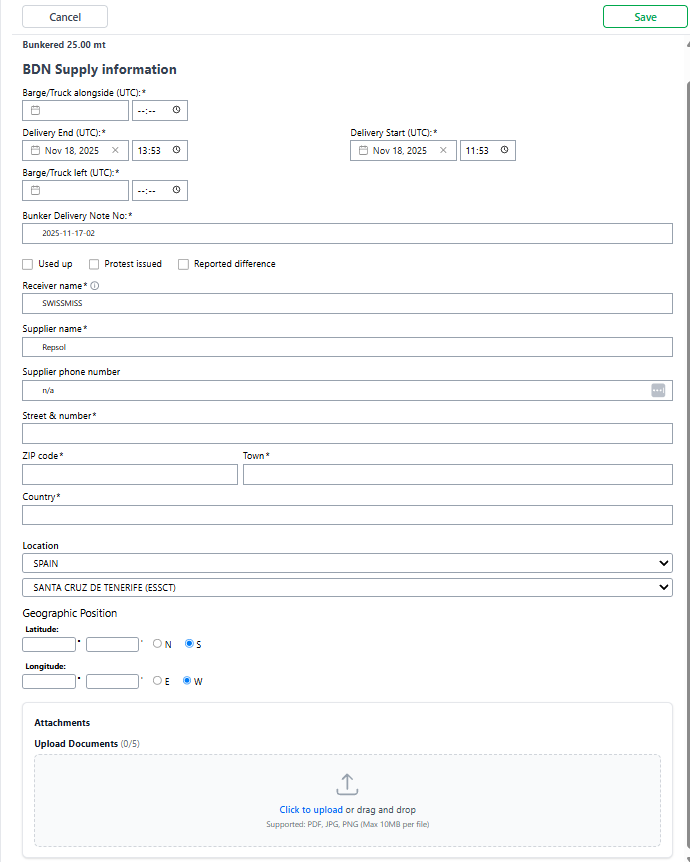
Required Information
🕒 Delivery Information
- Delivery Start (UTC) (commenced bunkering/pumping)
- Delivery End (UTC) (Completed bunkering/pumping)
📄 BDN Reference
- Bunker Delivery Note Number
👤 Receiver Information
- Receiver name
🏢 Supplier Information
- Supplier name
- Supplier address
- ZIP code
- Town
- Country
- Supplier phone number (optional)
📍 Location Information
- Country
- Port
or if bunkering took place off port limits enter the - Geographic position (Latitude and Longitude)
💾 Save Supplier (Optional)
If the supplier will be reused for future bunkering operations:
- Tick Save Bunker Supplier
- The supplier can later be selected from the Saved Supplier dropdown
📎 Upload Attachments
In the Attachments section:
- Upload the BDN document
Supported file formats:
- JPG
- PNG
📌 Uploading the original BDN document is recommended for compliance verification and auditing purposes.
💾 Step 4 — Save the Bunkering Event
After completing the supply information:
- Click Save
The system stores the bunkering event and opens the fuel component section.
➡️ Step 6 — Continue to the Next Section
After reviewing all entered information:
- Click Next
✅ The bunkering event is now successfully recorded in the system and rest on board (rob) and consumption figures can be entered in the events.
💡 Best Practices
- ✔️ Verify the BDN number before saving
- ✔️ Ensure the correct fuel type is selected
- ✔️ Upload the original BDN whenever possible
- ✔️ Use UTC times consistently
- ✔️ Double-check quantity and viscosity values
🌍 Automatic Emission Calculations
Based on the entered fuel data, we automatically calculate emission and compliance values for:
- IMO DCS
- EU + UK MRV
- EU ETS
- FuelEU Maritime
These values are used for environmental reporting and regulatory compliance.
📌 Summary
To enter a BDN in VesselReport:
- Open Bunkering Event (BDN)
- Click Add Bunkering
- Select the fuel type
- Enter fuel quantity and characteristics
- Enter supply and supplier information
- Upload the BDN document
- Save the bunkering event
The BDN is then available for operational tracking and compliance reporting in you events rob and consumptions.