The Fleet Portfolio provides an overview of all your ships and their total EU ETS-related emissions.
The Assign to Charterer function allows you to distinguish EU ETS exposure between the Manager (Compliance Entity) and the Charterer.
Click on a ship in the Fleet Portfolio to open its Emission Reports.
View and select emission reports
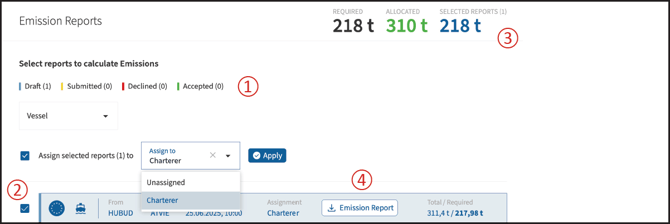
🔴 ① Filter by status
The status bar shows the different statuses of the voyage reports. Click on a status to filter the displayed reports.
🔴 ② Select reports
Use the checkbox next to a report to select the emission report you want to assign.
🔴 ③ Check the EUA summary
The summary in the upper-right corner provides an overview of the required EUAs, allocated EUAs and selected reports.
🔴 ④ Download the emission report
The ship’s emission report can be downloaded directly from this view.
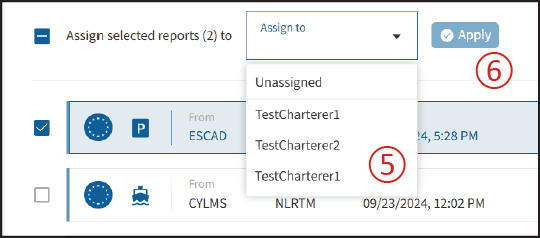
Assign an emission report to a charterer
Select the relevant emission report using its checkbox.
🔴 ⑤ Select the charterer
Choose the relevant charterer from the Assign to Charterer drop-down menu.
🔴 ⑥ Apply the assignment
Click Apply to assign the selected report to the charterer.